- DATE:
- AUTHOR:
- The Thanx team
Upload customer lists yourself — no support ticket required
You no longer have to ask the Thanx Support team to get your customer lists into the system. Upload CSVs directly into your dashboard, map them to customer attributes and tags, and start targeting those customers in campaigns, all in one flow.
 What is it?
Self-serve list import lets you upload external customer lists directly into Thanx to help you better target different guest audiences. Each list automatically gets its own segment, so you can start targeting right away. Simply upload a CSV, validate and clean your data on the spot, map columns to customer attributes and tags, and start using those tags in segments immediately. Thanx handles the rest in the background.
Every new list automatically gets its own segment in SegmentAI, so you can start targeting right away—no extra setup needed. Uploaded attributes are also saved and become available for you to create more segments with if needed.
 Why it matters
If you’ve ever had to hold a campaign while waiting for a list upload to come back from Support, this is for you.
Move at your own speed: Upload directly in the dashboard when you need to — no ticket or handoff.
Your data, your tags: Map any column in your CSV to a customer attribute or custom tag. Those tags are available for segmentation 1-2 hours after upload.
Catch errors before they cause problems: Real-time validation flags bad emails, malformed data, and duplicate rows inline. Fix issues on the spot or skip the invalid rows and move on.
Two modes for two workflows:
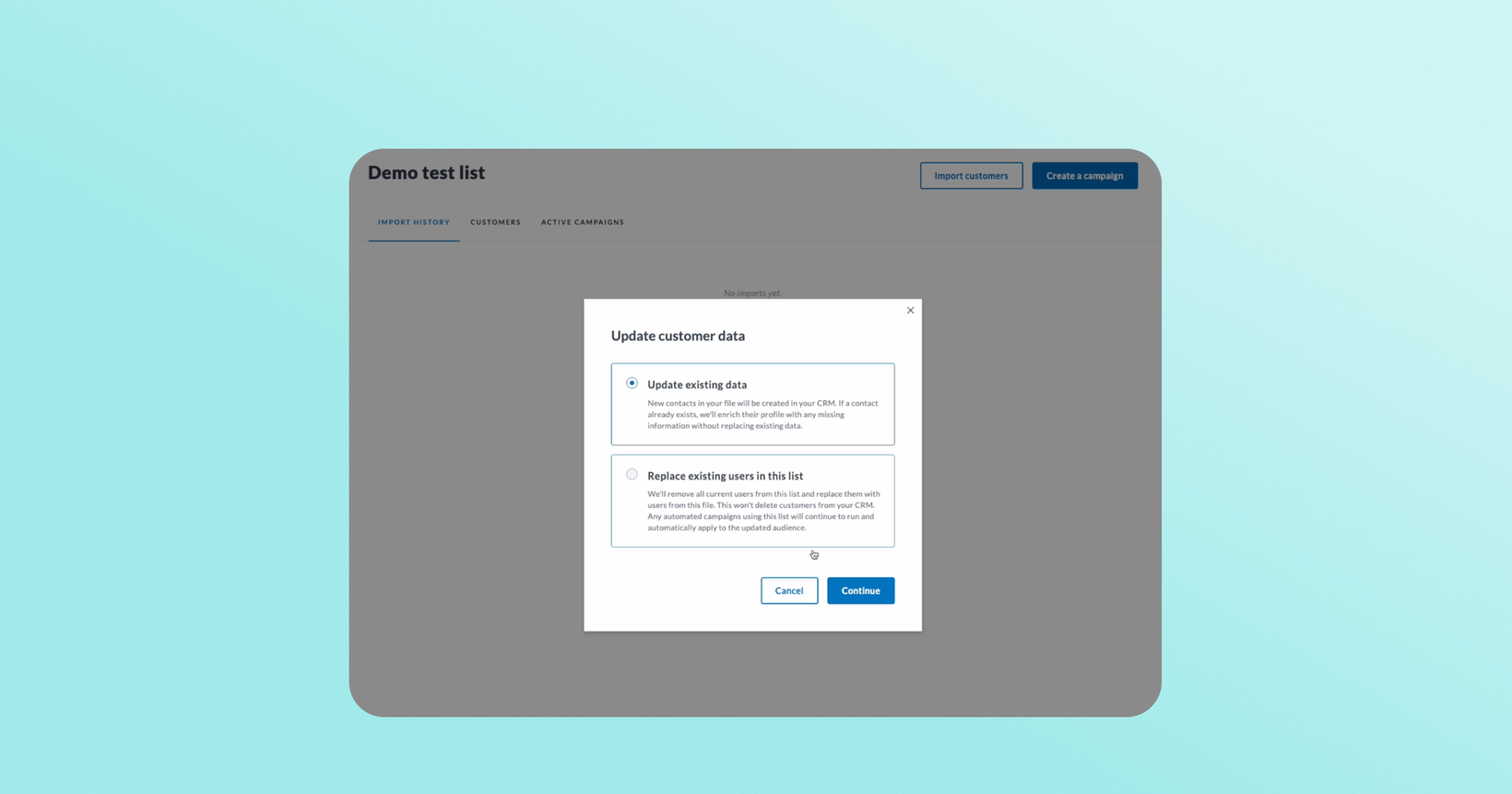
Upload adds new customers without touching existing records — great for recurring imports like weekly Wi-Fi sign-ups.
Replace removes everyone from the list and replaces them with your new file — useful when switching data sources or doing a full refresh.
Full import history: Every upload logs the file name, date, and status. Download the original file anytime from the list detail view.
 How it works
Go to Customer Lists and create a new list or select an existing one
Choose Upload (add customers) or Replace (full refresh)
Upload your CSV — validation runs automatically, flagging errors by row. Fix inline, skip, or download a clean-up file to re-upload
Map your CSV columns: standard fields (email, phone, name, birthdate) map automatically; use the “Add new” dropdown for custom tags
Hit Import — processing runs in the background at ~4,500 rows/minute
When complete, you’ll receive an email. View your list’s customers, import history, and active campaigns targeting that list
 A few things to know
List upload time can take up to two hours after upload. Please plan accordingly when thinking about campaign sends.
Not for loyalty program transitions: Importing points, rewards, or tier levels still requires working with Thanx. This tool is for customer data and tags.
Custom attributes/tags: Values are overwritten. If you upload
favorite_location: Bostonfor a user who already hasfavorite_location: New York, the value becomesBoston. An empty cell clears the existing tag value. Whatever is uploaded becomes the source of truth for that attribute. If you would like to preserve both values, you can map the column to the tag supporting multiple comma separated values. For example, Favorite Location (multiple values).Account fields (email, phone, first/last name, birthday, zip code): These are never overwritten by import. Values are only filled in if the field is currently empty. This protects user-managed data.
No tag merging tool: You will see each distinct tag option in dropdown during mapping, which will help you prevent new misspellings or accidental duplication, but there is no self-service tool for merging existing tags.
100,000-row limit per upload: For larger files, split into chunks or contact Thanx for assistance.
No self-service undo: You can also use the Replace flow to overwrite a list with a corrected version. If you need additional help, contact Support.
 FAQs
FAQs
Does “Replace” also replace the custom tags that were added from that list?
No. Any columns that you have updated and that have been turned into tags will persist, but the link between the users and the list being modified will disappear. Nothing changes with the historical tags and data on the account level.
Can I still send lists to Thanx Support to upload manually?
All list uploads are self service now in the dashboard, however if you have any questions about your list or how to upload, please reach out to Thanx Customer Success.
What if my CSV has commas inside a field value (like “Santa Monica, CA”)?
By default, the entire cell is treated as a single value, so “Santa Monica, CA” stays intact. If you want commas to split into multiple tag values (e.g., “pescatarian, lactose free” → two separate tags), you can select the comma-separated option for that column during the mapping step.
What if the same customer appears twice in my file?
Validation flags duplicate rows. If the same email appears twice with different data, the last row wins. Best practice: remove duplicates from your source before uploading.