- DATE:
- AUTHOR:
- The Thanx team
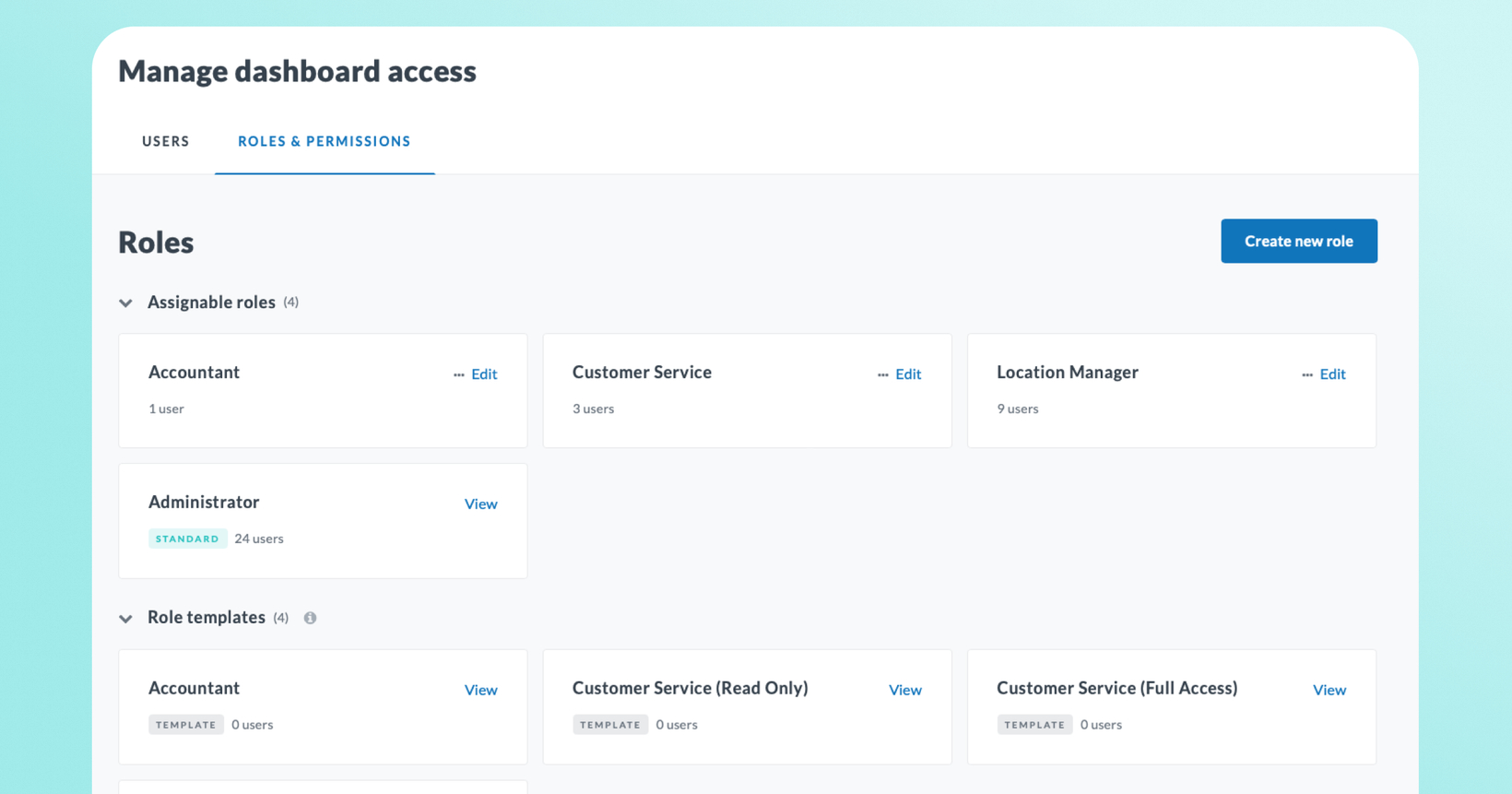
Role-based permissions for every user on your team
With Role-based permissions, you can give every user exactly the right level of access, scoped to the right locations, so your whole organization can work in Thanx with confidence. Your dashboard can now mirror how your organization is actually structured whether that's a corporate team, regional managers, franchise operators, or outside agency partners.
 What is it?
Role-based permissions lets you create custom roles with exactly the right level of access for each person on your team and scope those roles to specific locations. A franchisee sees only their stores. An agency contact can build campaigns but can't touch customer data. A regional manager sees their territory and nothing else. You control who can do what, and where.
 Why it matters
With Role-Based Permissions, you can give every user exactly the right level of access.
Built for enterprise operations: Corporate, regional managers, franchise operators, and location-level staff can all have roles that fit exactly how they work.
Works for agencies too: Give an outside partner like a marketing or creative agency access to build and send campaigns without exposing billing, customer data, or other sensitive areas.
Scales cleanly: Create a role once, assign it to any number of users. When someone new joins, assign their role and locations quickly.
No disruption on launch: Everyone currently in your dashboard keeps their existing access. Nothing changes unless you change it.
 How it works
Create roles
Go to Dashboard Access in your profile menu. build a customer role with access to features you choose — Marketing, Customers, Dashboard Management, Program Configuration, Loyalty Program, Games & Experiences, and Reporting. Set each to No Access, Can View, or Can Manage, otherwise permissions default to “Can View.”
Not sure where to start? Thanx provides role templates (Location Manager, Customer Service, Accountant) you can use as-is or customize.
Assign users and locations
Once a role is created, assign it to any user. Locations can also be assigned to users where they can apply their role permissions to locations assigned. If no locations are assigned, the user will have brand-wide access.
Invite new users directly from the role flow
When assigning a role, you can invite a net-new user in the same step — their access takes effect immediately.
 A few things to know
Only admins can manage users and roles. Your account must always have at least one admin.
Multiple roles = most permissive wins. When a user has multiple roles, their permissions are the union of all roles — so the most permissive setting for each feature area applies. Assigning a restrictive role on top of a permissive one doesn't reduce access. For example: if one role grants "Can Manage" for Campaigns and another grants "Can View," the user gets "Can Manage.”
Location-based reports aren't fully scoped yet. Insights Lab and Looker Labs reports don't support location scoping in this release — that's coming in a follow-up. For now, consider limiting reporting access for users who are allowed to see the full picture of your business data.
Users who have no locations assigned will have access to all locations. Make sure to assign specific locations to any user who should have a restricted view.
Guest profiles are visible in full regardless of location assignment.
 FAQs
FAQs
Do I need to reconfigure my existing users?
No — everyone currently in your dashboard is automatically migrated to their equivalent role. Nothing changes unless you go in and make changes yourself.
Can a location manager assign roles to their own staff?
No. Only users with the admin role can manage user access and role assignments.
What if a user needs access to multiple areas?
You can assign more than one role to any user. Keep in mind that if roles overlap, the one with the most access takes precedent.
Can I restrict a user to specific locations?
Yes — after assigning a role, designate which locations that user has access to.