- DATE:
- AUTHOR:
- The Thanx team
Live- 86'd items visibility control
Brands can now choose how out-of-stock items and modifiers display on their Thanx digital ordering experiences.
 What is it?
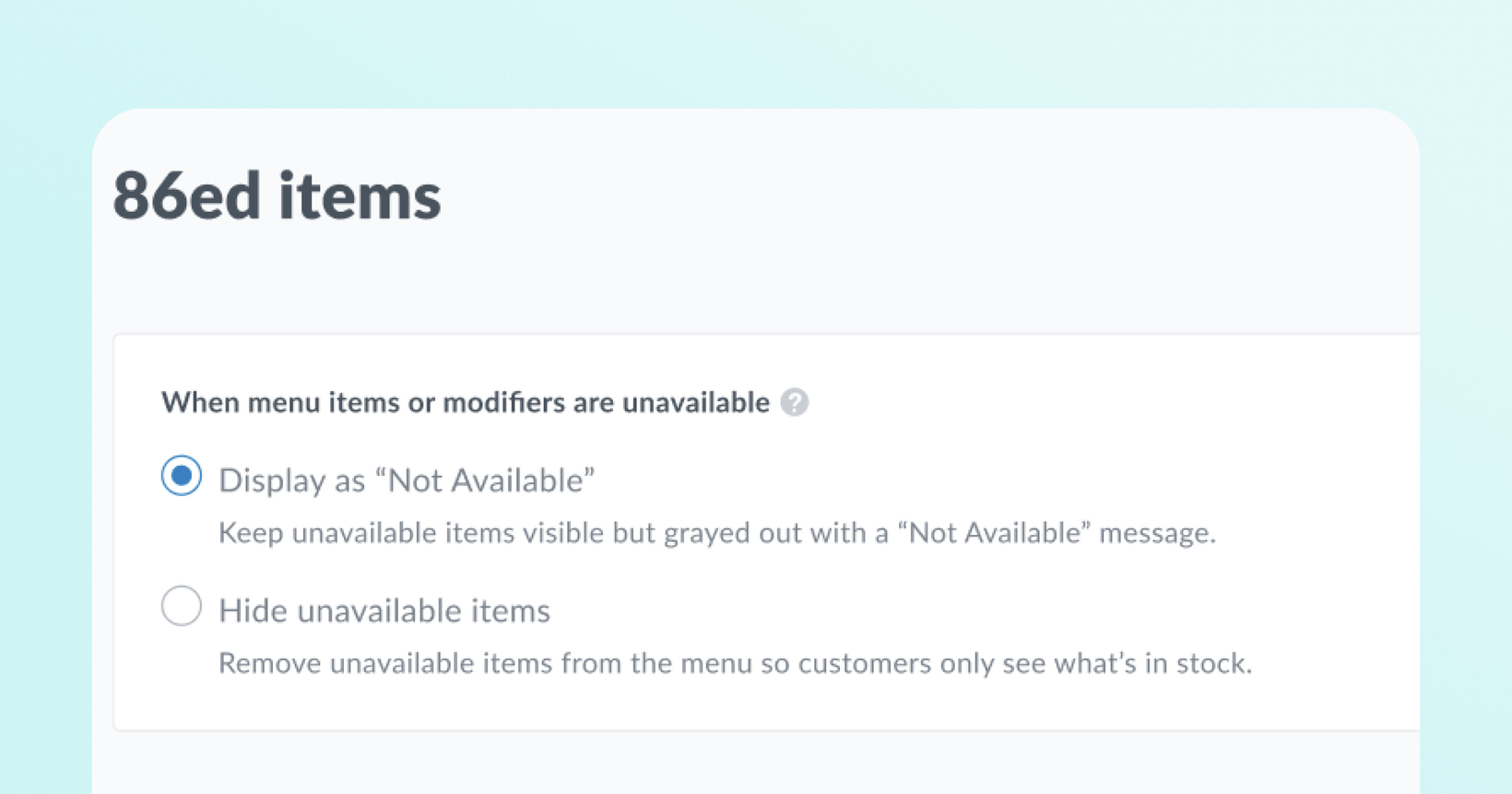
Now you can hide 86'd (out-of-stock) menu items and modifiers on customer-facing digital ordering menus. Choose between displaying out-of-stock items and modifiers as grayed out with "Not Available" messaging, or hiding them from the menu entirely.
 Why it matters
Different operations have different needs when an item or modifier runs out. Some restaurants want customers to see that an item exists but is temporarily unavailable, while others prefer a cleaner menu that only shows what items can be ordered. This control lets merchants match their menu display to their operational style whether managing a temporary 86'd item or permanent menu management across locations.
 How it works
Merchants can choose between two display states for 86'd items and modifiers:
Display as Not Available (default): Out-of-stock items and modifier options remain visible on the menu but appear grayed out at reduced opacity with "Not available at this time" text. Customers can see the item exists but cannot add it to their cart.
Hide Unavailable Items: Out-of-stock items and modifier options are completely removed from the customer-facing menu until they are back in stock.
The default for all merchants is Display as Not Available. No action is needed unless you’d prefer 86’d items and modifiers to be fully hidden from the menu. Once you save and publish your selection, the change takes effect on the next menu load — no manual refresh required.
If your restaurant uses 86'ing as a menu management tool (e.g., to control which items appear at specific locations), we recommend switching to the "Hide Unavailable Items" setting for the best guest ordering experience.
 Note: As of today, 86’d modifiers now follow your visibility setting. Previously, they were always hidden — now they display as grayed out by default. If you’d prefer modifiers to stay hidden, update your setting to "Hide Unavailable Items" now.
 Where to find it in Thanx
Navigate to: Settings → Ordering → 86'd Items
Note: The Settings page has moved. It is no longer located under Digital Experiences → Brand & Content. It now lives as its own standalone page accessible from Settings → Ordering
Step-by-step:
Log into the Merchant Dashboard
Select Settings
Click into the Ordering section
Select the 86'd Items tab
Choose your preferred display option
Click Publish — a green success banner will confirm your changes are live
 FAQs
FAQs
Will my 86'd items change behavior automatically after this update?
For items, no — they’ve always appeared grayed out, so no change there. For modifiers, yes — they were previously always hidden and now display as grayed out by default. If you want them to remain hidden, update your setting to "Hide Unavailable Items".
What happens to 86'd modifiers in my menu?
As of today, 86'd modifiers follow the same visibility setting as items. They now appear grayed out by default ("Display as Not Available") instead of being hidden. If you’d like to keep them hidden, update your setting to "Hide Unavailable Items".
Does this setting apply per location or globally?
The setting is global per brand. All locations share the same preference. Location-specific overrides are not supported at this time.
Does this affect modifier options (add-ons), or just top-level items?
Both. When set to "hidden," 86'd modifier options are excluded from the product detail view. When set to "Display as Not Available," they appear grayed out with "Not available at this time" text.
Which ordering providers are supported?
Olo and Toast. Support for other providers is not yet available.
How quickly does a setting change take effect?
Immediately on the next menu load. Customers who already have the menu open will see the change on their next page refresh or navigation.
What happens if a customer has an item in their cart that gets 86'd before checkout?
The standard "items removed" modal is shown at checkout, regardless of the visibility setting. The visibility setting only controls how 86'd items appear during menu browsing.
What happens if every item in a category is out of stock?
If every item in a category is 86'd and the setting is "hidden," the category is also hidden. If every item in a category is 86’d and the setting is “Display as Not Available,” the category will still be there with all items grayed out.
Note: For Olo merchants, you must have "include disabled" setting enabled in Olo or 86'd items won't be sent to Thanx at all.