- DATE:
- AUTHOR:
- The Thanx team
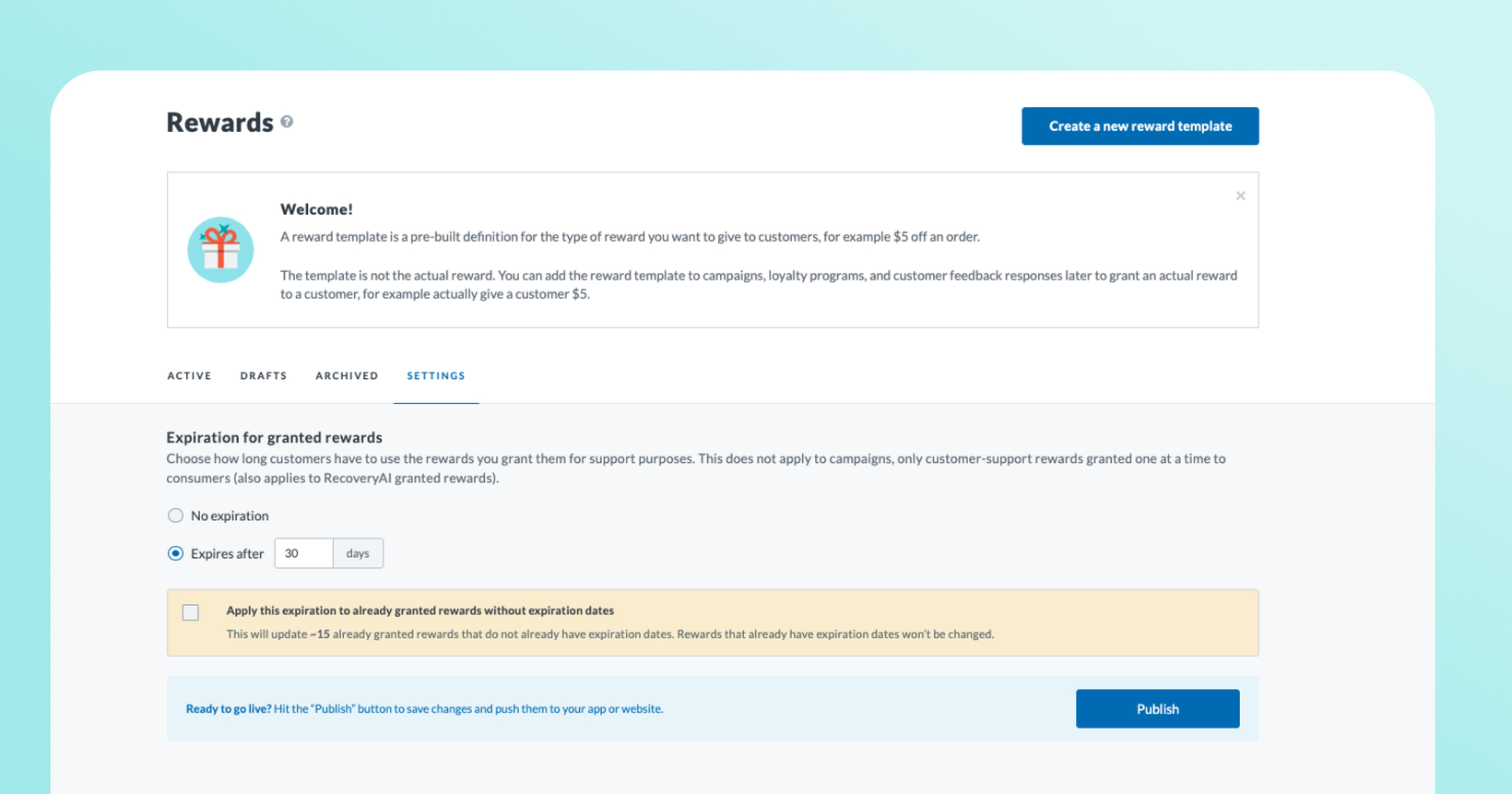
Set an expiration on the rewards you grant guests
Setting expiration dates on granted rewards just got easier. Configure expiration dates directly from your dashboard. No Thanx support required.
 What is it?
Granted rewards — the ones you issue straight to a guest, typically through Customer Support (and soon, RecoveryAI)— used to have no expiration configuration in the dashboard. Now you can set a single expiration window (in days) that applies to every granted reward, including ones you've already issued. Available now for all merchants with granted rewards enabled.
 Why it matters
Eliminate accumulated liability. Granted rewards issued without an expiration never go away. Setting an expiration window lets you retire your backlog of perpetual rewards and prevent new ones from piling up. Giving you immediate, material financial relief.
See the impact before anything changes. Before you confirm an expiration date, your dashboard shows exactly how many rewards and guests will be affected — nothing changes until you say so.
Retroactive application of the expiration date is opt-in, not automatic. You decide whether to apply the new expiration date to rewards that have already been granted. To do so, check the box (unchecked by default) — it won't be applied unless you actively select it.
Covers every granted reward, automatically. This will also apply to RecoveryAI-issued rewards, not just manual grants — one setting, no gaps.
Self-service. Configure it yourself in the dashboard — no need to file a support request.
 How it works
Log in and you'll see an alert prompting you to set your expiration window (or go to Rewards → Reward Settings anytime).
Choose No expiration or Expires after [X] days. It's pre-populated at 30 days, and you can set anywhere from 1–999 days.
Click Save. You'll see: "This will expire X rewards affecting Y customers" — review before you confirm.
Confirm to apply. Rewards older than your window retire within the hour; new rewards start their clock the moment they're granted, using time in UTC.
 Before you set a short window
Expiration applies retroactively by default — if you set a tight window, outstanding rewards older than it retire right away. If there are a large number of rewards affected, we recommend sending a message to your guests so they are aware of upcoming changes.
This is a single global setting for now — you can't set different windows for different reward types (e.g., a short window for influencer rewards vs. a longer one for VIP recovery). If you need that kind of variance, a campaign with its own restrictions is the best workaround today.
 FAQs
FAQs
Does this affect rewards issued through RecoveryAI?
Yes. RecoveryAI-granted rewards use the same expiration setting as manually granted rewards — there's no separate window for each.
Will this expire rewards my guests are actively holding onto?
You'll see exactly how many rewards and guests are affected before anything is applied. Nothing retires until you confirm.
Can I set different expiration windows for different reward types?
Not yet — this is a single global setting. If you need reward-specific variance, use a campaign with its own restrictions instead of a manual grant.
Will my guests be notified when their reward expires?
Not automatically. We recommend sending a campaign to your guests, especially if you're applying a shorter window retroactively.
Can I undo an expiration once it's applied?
No — once a reward expires, that can't be reversed. Review the impact confirmation carefully when setting the expiration date before confirming.