- DATE:
- AUTHOR:
- The Thanx team
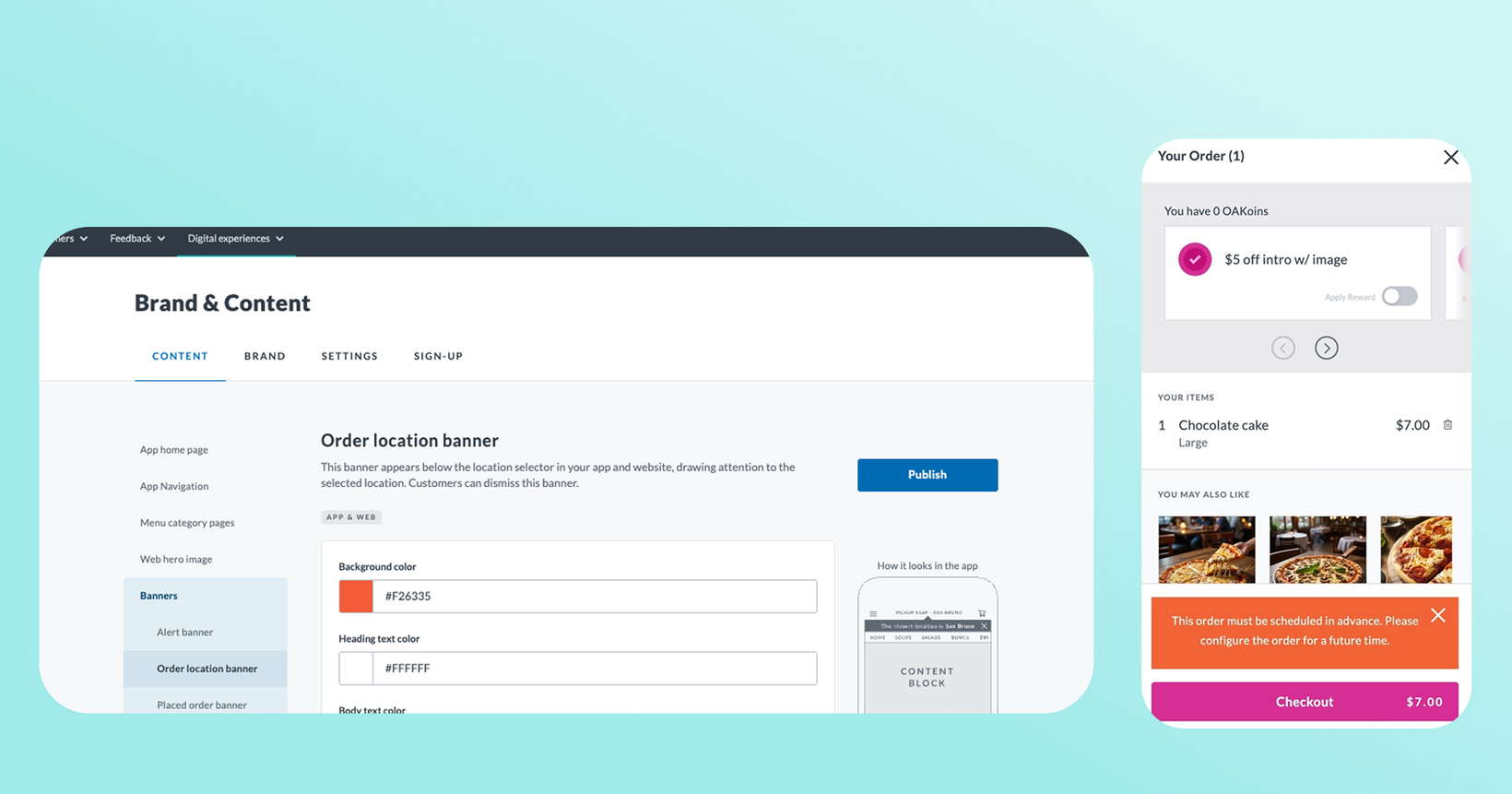
Customizable banner colors for web ordering
Your web ordering experience now reflects the banner colors you've already chosen for your brand. Whatever you've set up in your dashboard for your app is now consistent on web ordering too. The result? Background colors, text colors, and button colors now show up the same way on your web ordering experience. No extra steps, no duplicate configuration.
 What is it?
Your banner color settings in your dashboard now apply to web ordering automatically.
 Why it matters
Your guests interact with your brand across both your app and web ordering. Until now, any banner color customizations you made applied only to mobile, while web ordering showed generic default styling, creating a noticeable inconsistency for guests switching between channels.
This update ensures your brand shows up consistently everywhere guests order, without any additional work on your end.
 How it works
Nothing to do on your end! If you've already customized banner colors in your dashboard, web ordering will automatically pick them up. This applies to:
Order location banner — the banner guests see when selecting where to pick up their order
Error banners — the messages guests see when something goes wrong during browsing, selecting items, or checking out
 Note: “Placed Order Banner” still only applies to app.
 Where to find it in Thanx
Head to the dashboard and go to Brand & Content > Content > Banners. Any colors you've already configured will now apply to both your app and web ordering. If you haven't set custom colors yet, this is a great time to make your web ordering experience feel fully on-brand.
 FAQs
FAQs
Do I need to do anything to turn this on? Nope — it's automatic. If you've already set banner colors for your mobile app, they'll apply to web ordering right away.
What if I haven't customized my banner colors yet? Web ordering will continue showing the default Thanx styling. To add your own colors, go to Brand & Content > Content> Banners.