- DATE:
- AUTHOR:
- The Thanx team
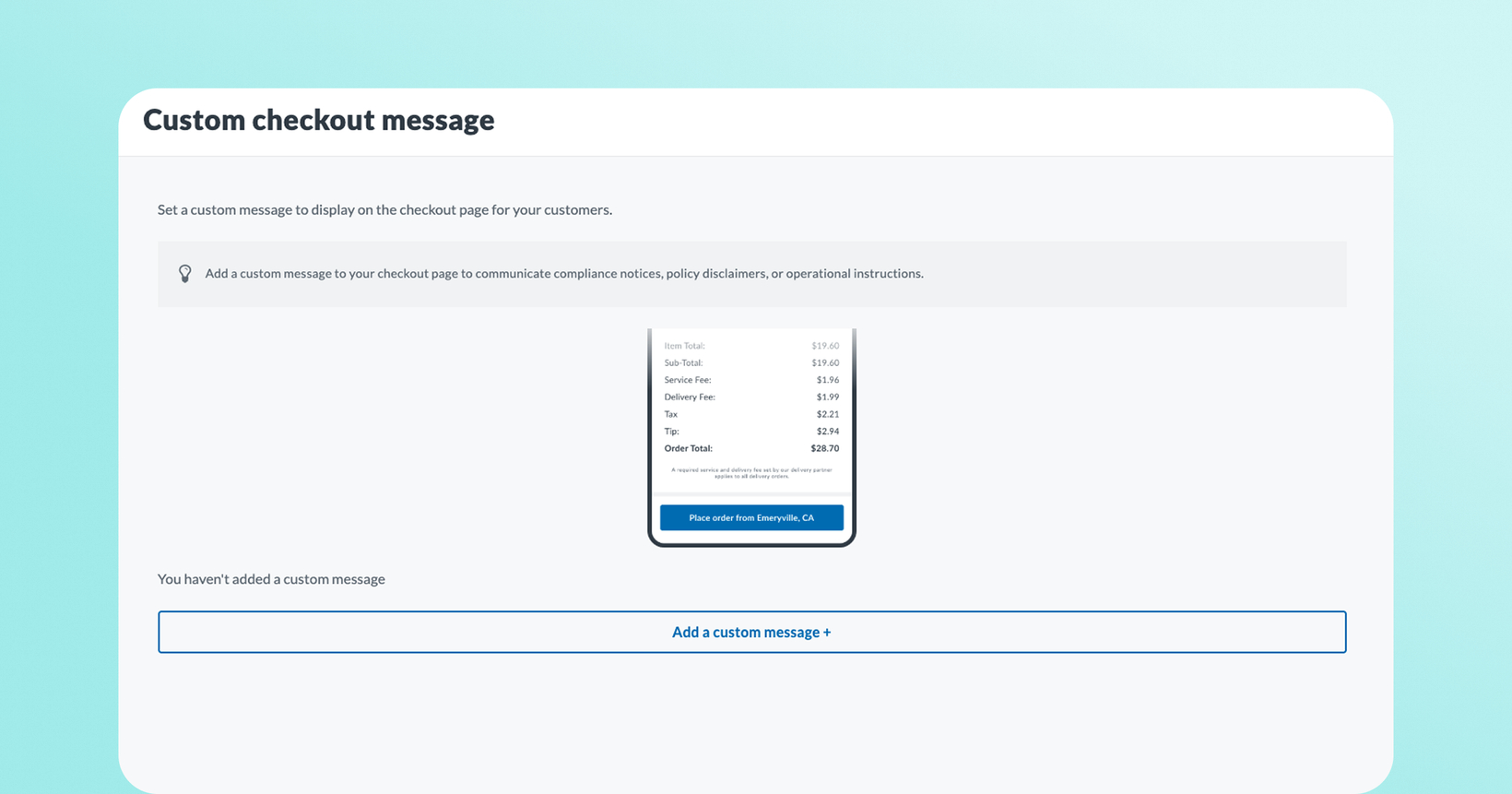
Add a custom message to your checkout screen
You now have a place to say exactly what customers need to know before they place their order, right at the bottom of your checkout screen.
 What is it?
Custom Checkout Messaging lets you configure a message that appears at the bottom of your ordering checkout screen on web and mobile. Use it to explain fees, clarify taxes, communicate ordering policies, or link to any information customers might need before completing a purchase.
 Why it matters
The checkout screen is the last thing a customer sees before placing an order. For merchants with service fees, local tax nuances, gift card restrictions, or policy requirements, this is exactly where that information belongs — not in a 1-star review.
Get ahead of fee questions: Add a note explaining service charges or surcharges so customers aren't surprised at the end of checkout.
Clarify tax display: If your tax line items are calculated in a way customers might find confusing, a quick explanation prevents order total confusion.
Communicate ordering policies: Tax-exempt orders, gift card limitations, pickup instructions — surface them right when it matters.
Link to more detail: Turn any part of your message into a hyperlink to your full policy, terms, or FAQ page.
 How to set it up
In your Thanx Dashboard, go to Dashboard > Settings> Custom checkout message (admin access required)
Click Add a Custom Checkout Message+ button
Type your message — up to 500 characters. We recommend keeping it under 280 for best readability on mobile
To add a link, highlight the text you'd like to make clickable and add the URL
Click Save — your message will appear on checkout screens within a couple of minutes
To remove the message at any time, clear the text field and save. The checkout screen will return to its normal state with no extra whitespace.
 A few things to know
Brand-level only: Your message appears across all locations. Per-location messaging isn't supported in this release — if you need location-specific context, include the location name directly in the message text.
Plain text and links only: The editor supports text and hyperlinks. Bold, italics, and other formatting aren't available in this version.
Admins only: Only dashboard administrators can configure the checkout message.
 FAQs
FAQs
Can I show a different message at different locations?
Not yet — the checkout message is configured at the brand level and appears across all your locations. If you need location-specific context (like a tax note for one store), you can reference the location by name in the message itself.
Is there a character limit?
The maximum is 500 characters, enforced in the dashboard editor. We recommend keeping your message under 280 characters for the best experience on mobile screens.
Does the message appear on both web and mobile?
Yes — the message appears on the checkout screen for both your web ordering experience and your mobile app (iOS and Android).
Can I include a link in my message?
Yes. Highlight any text in the editor and add a URL to make it a clickable link. You can include multiple links in one message. On mobile, links open in an in-app browser.